

There’s a particular kind of CompanyGPT/MCP Server problem that IT teams face, and we don’t discuss much in tech blogs. You’ve integrated some important system with an MCP server. Maybe it’s a weather service, maybe it’s your internal HR system, maybe it’s a customer database. The MCP is working beautifully in the terminal, and your enterprise tools are fully integrated. Finally, people can do things that were difficult or impossible with the UI of the software. But now someone asks: “Can we build a UI for this so that people can do X?”
You’re like “Why don’t they just use the MCP directly?”, but the answer is broad: terminal usage is both restricted to few people and anyways intimidating for most people, so no claude code; because prompt paralysis is real in Chat Interfaces; because they simply don’t know how. They want a simple interface where they can click buttons, see data displayed in tables or charts, and interact without needing to understand the underlying tools.
So you bring this to your CompanyGPT Team, they tell you they’ll add this to their backlog, and then this is where things usually stall.
They’d need to set up authentication, test it, and deploy it. After that people will still not using it because they freeze in front of the empty prompt, see prompt paralysis above. So first talks are around deploying a web app. That’s weeks of work. For something that might only be used by a handful of people internally? Wasn’t that supposed to be easier with MCP and LLMs by now?
Hopefully with v0.4.4 of Enterprise MCP Bridge, it is. Instead of waiting for developers, the person managing your IT infrastructure, and even everybody having access to the MCP, can build the interface themselves, directly from the MCP tools you already have. In plain language. No code required.
We already added the first bits of this in an earlier version - but now you can use it yourself, without building an extra user interface to generate user interfaces. And we give you a “Deploy To Render” button so you can easily try it out on a free service instance on Render.
This isn’t about replacing developers. It’s about extending the capabilities of your teams so they can solve problems that would never have had dedicated engineering resources in the first place. It’s about moving from “we have a tool” to “we have a tool that people can make work for themselves”.
How AI-Generated UIs Actually Work
The technical approach matters here, because the difference between “toys” and “useful tools” comes down to architecture.
Most code generation is optimised for a single attempt. You describe what you want, the AI generates something, and you hope it works. If it doesn’t, you try again. This is unreliable at scale, especially for anything that needs to integrate with real systems.
The Enterprise MCP Bridge uses a different approach. When you describe a UI, the system doesn’t just generate code and send it to you. It generates code, runs it immediately against actual tests, catches problems, and fixes them. Then it shows you the result.
The generation happens in two phases. Phase 1 generates the service layer: the logic that talks to your MCP tools, orchestrates their responses, and turns raw tool output into usable data. This is the hard part. Phase 2 generates the presentation layer: the HTML and JavaScript that displays the data to a user.
We separate these because they live in different problem domains. The service layer needs to be correct above all else. The presentation layer can iterate. And by running tests after phase 1, we catch fundamental problems before we even try to build a UI.
Here’s what actually happens when you ask for a weather dashboard, for example. The system queries your MCP servers and discovers the available tools. It figures out that a weather tool exists. It calls that tool with sample data, gets back a real response, and now it knows exactly what the tool outputs look like. It then generates a JavaScript service class that knows how to call this tool and extract the temperature value from whatever structure the tool returns. It generates tests that verify this works. It runs the tests. If they fail, it sees the actual error expected 0 to be greater than 0 and adjusts the dummy data generation to use real values. Then it re-runs the tests. Only once tests pass does it move to generating the UI that will display this data.
At each step, the AI has concrete feedback about what works and what doesn’t. It’s not guessing. It’s not making assumptions. It’s looking at actual test failures and fixing them.
UI Generation for People - The User Experience
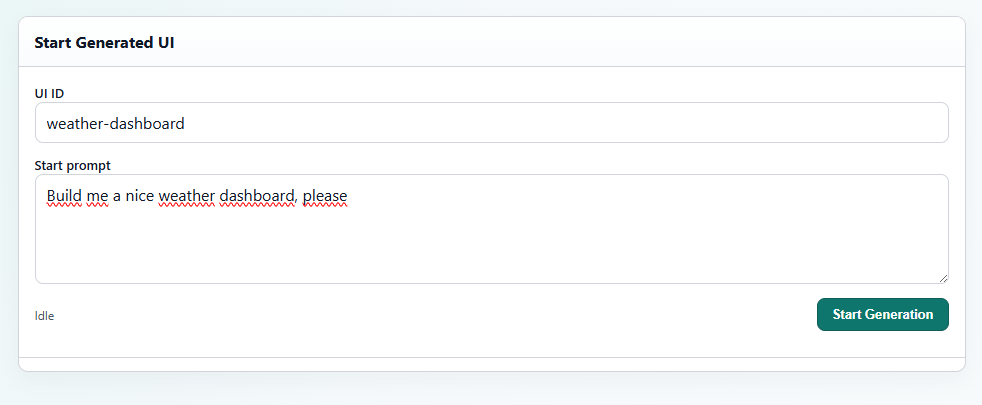
When you navigate to /app/_generated/start, you’re at the generation interface. You give your UI a name and describe what you want. The system queries your MCP servers, discovers tools, and generates everything. While it’s running, you see status updates as each phase completes.
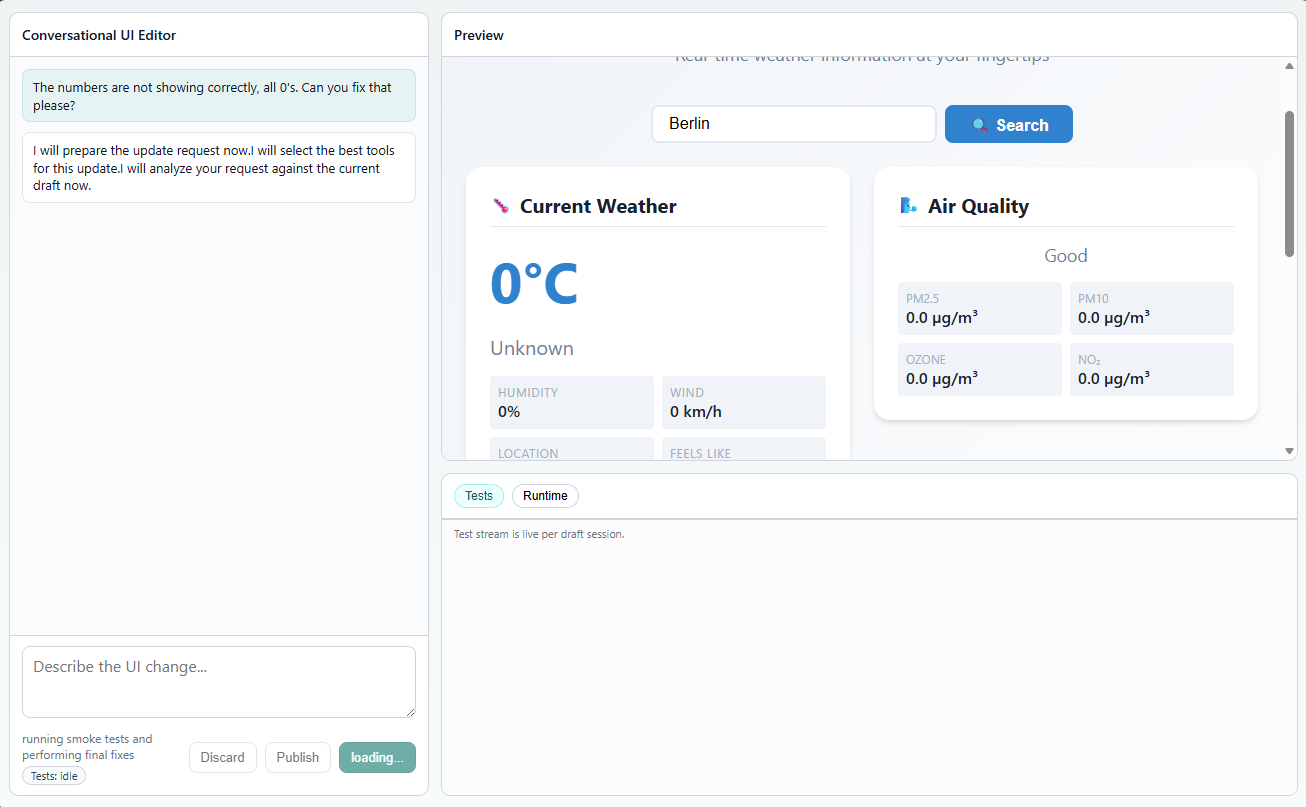
Once generation is complete, you’re dropped into the conversational editor. This is where the back-and-forth happens. The preview is live on the right side. On the left, you have a text input where you can describe changes. “Add a filter for department.” “Make the font bigger.” “Change the color to blue.” Each change goes to the AI, which regenerates the affected code, runs tests again, and updates the preview within seconds.
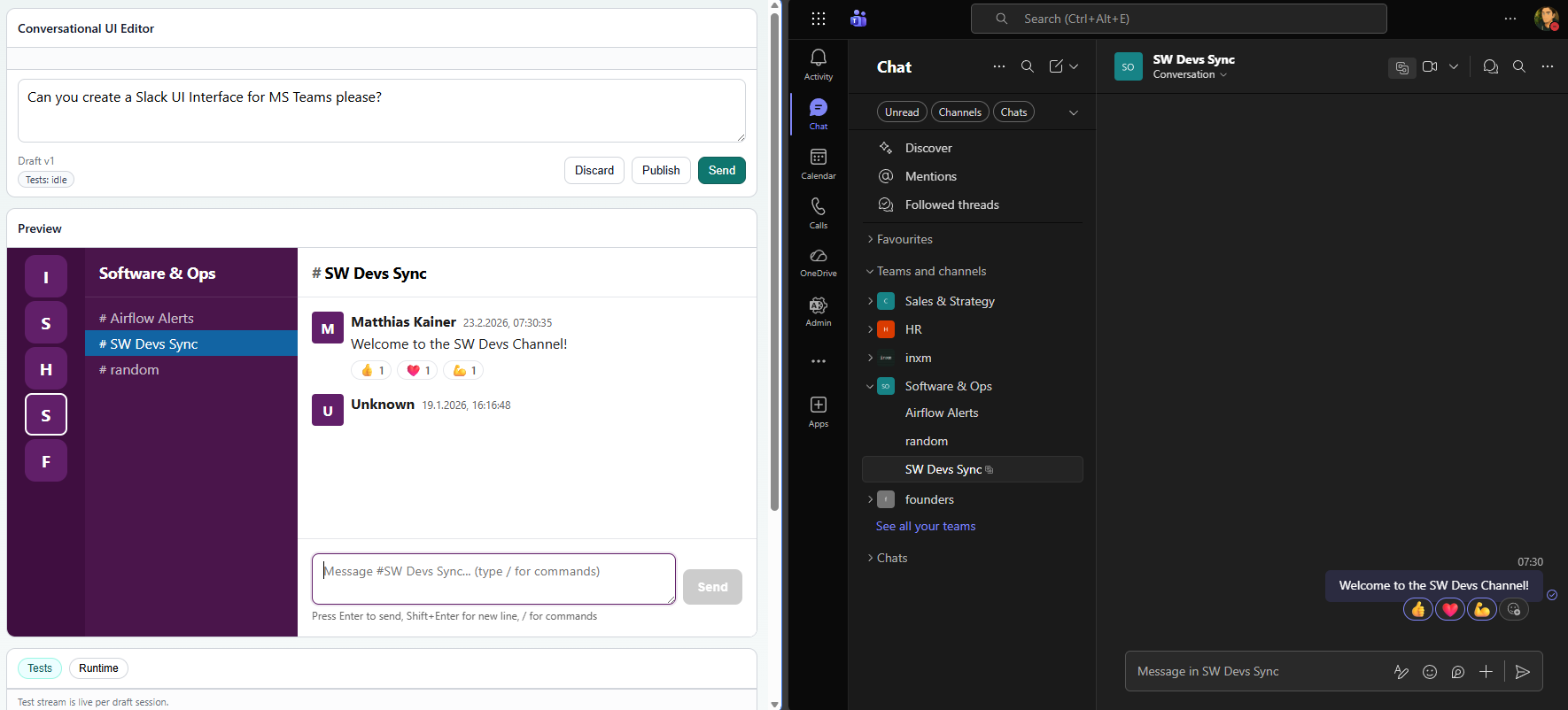
The interesting thing is that this approach isn’t limited to just create your usual business value creating stuff. Let’s say you’re not a fan of microsoft teams, and always wanted it to be slack. You can just ask the system to generate a slack interface for your m365 mcp tools for Teams.
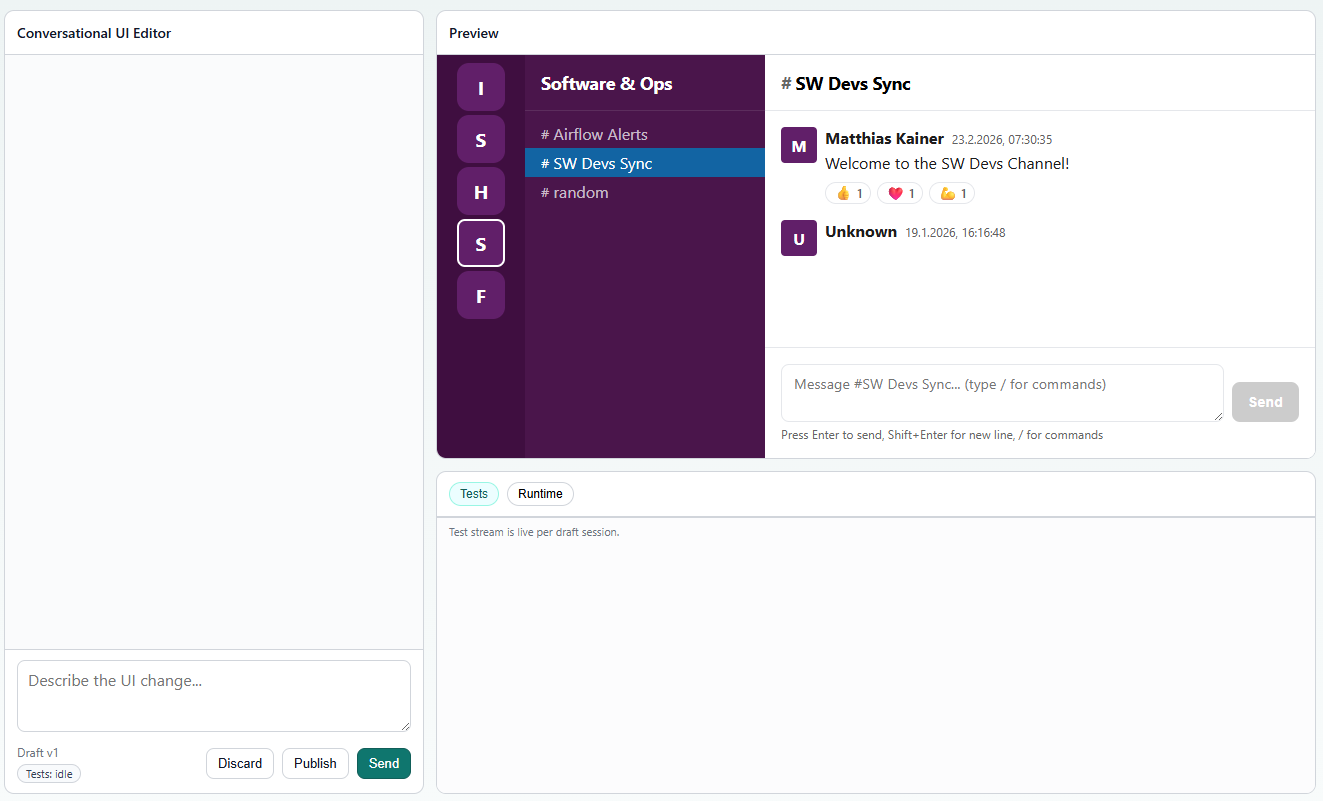
You’re not locked into one interface. You can build multiple UIs for the same tool, even targeting different platforms, and they all use the same underlying service logic. Your coordinator can see employee data in a web dashboard. Your Slack users can query it from Teams. Your executives can see a different view optimized for their needs. All for the cost of describing what you want a few times, and the tokens that are needed to make your idea come true.
Why This Matters in Enterprise Settings
I want to step back and explain why this matters beyond just “cool technology.”
In most organizations, there’s a massive backlog of small tools that nobody gets around to building properly. Your HR coordinators want a better way to look up employee information. Your accounting team wants a dashboard to see budget spend. Your ops team wants a way to check system status. These are all important problems, but they’re not big enough to justify hiring developers or pushing them through a formal project process.
So they don’t get built. Instead, people use spreadsheets, or they call the developers on Slack, or they log into the main system (which is expensive in terms of licensing and slow because it’s not optimized for this particular task).
With conversational UI generation, these problems become solvable by the people who understand them best. The manager who owns the system isn’t a professional developer, but they can describe what they need and iterate until it’s right. They can deploy it themselves. They can modify it when requirements change. There’s no queue. There’s no waiting for developer bandwidth.
The enterprise angle here is about empowerment more than automation. You’re giving teams the ability to build simple interfaces without waiting for someone else.
The security angle matters too. Your IT team handles IAM once, in a central place. Users never see tokens. Credentials never leak into the browser, or obscure devices. It’s managed the way enterprises should manage it: centrally, with audit trails, with proper access controls.
Right now, most enterprise tool integrations happen through expensive consultants or your own development team. Conversational UI generation makes it possible for smaller organizations, or smaller problems within larger organizations, to be solved without that overhead.
How Conversation Works
The core insight behind this is treating UI generation as a conversation rather than a single request-response cycle. Traditional code generation feels like calling a function: you pass in parameters, you get back code, and you hope it’s right. Conversational generation feels more like working with a collaborator who remembers what you’ve asked for, what you’ve changed, and what problems you’ve hit.
When you first describe your UI, the system generates something. It might not be perfect. You look at it and describe a change. The system now knows both your original intent and your first change. It regenerates just the parts that need to change, leaving the rest alone. This continues as long as you want to iterate.
What makes this work is maintaining state. The system tracks your conversation history: every request you’ve made, every change. It tracks the current code in all four layers: the service code that calls your MCP tools, the component structure that holds state, the tests that verify behavior, and the dummy data used for development. It tracks what changed in each generation step. It tracks test results so it knows what’s working and what isn’t. When it needs to make a change, it has all this context, so the changes are usually small and targeted instead of wholesale rewrites.
This is actually more like how software professions do work, when you think about it. You build something, you look at it, you adjust it based on feedback. You don’t hand a specification to someone and get back perfect code on the first attempt. Yet that’s what we ask of code generation systems most of the time.
What This Isn’t
I want to be clear about the boundaries of what we’ve built.
This isn’t a replacement for professional design. Generated UIs are functional and reasonably attractive, but if you need pixel-perfect design or complex interactions that differentiate your product, you’ll want a designer. Generated UIs are for internal tools, dashboards, administrative interfaces: the kinds of applications where people care about function, not form.
It’s not magic. If your tools are poorly documented or have inconsistent behavior, the generated code will inherit those problems. The system generates code based on what it understands about your tools. Understanding is bounded by what the tool tells us.
You still need to think about your problem. The system helps you build a solution quickly, but it doesn’t figure out what you should build. You need to know that you want an employee directory, and roughly what should be in it. You can have the system build it for you, but the vision has to come from you.
It’s not production-ready for every use case. Internal dashboards? Absolutely. Administrative interfaces? Yes. Tools for your team? Perfect. User-facing consumer applications where design is a competitive advantage? These aren’t good fits.
What it is good for: the 80% of applications that don’t need custom design. The tools that are requested but never get built because they’re not big enough to justify a formal project. The simple interfaces that would take a developer days to build but take a conversation with a non-technical person five minutes to describe. Rapidly prototyping new ideas without committing engineering resources. Building multiple interface variants for the same tool.
What Else Changed Since v0.4.2
The work since the last release has been substantial. We built the conversational UI generation system from the ground up, but we also made several infrastructure improvements that matter for enterprise deployments.
One of them is authentication. In a typical enterprise, you don’t want every individual user to set up OAuth2 credentials for every tool they might need to use. That’s fast one it gets to onboarding, but a bit slow when you want to revoke all tokens quickly after a security incident. The Enterprise MCP Bridge always was about support this centrally. So now, after plenty of internal testing, we could release direct MCP exposure through Server-Sent Events, with token switching handled by the bridge itself.
What this means in practice is that your IT team sets up the OAuth2 once, in your IAM system. Then when an end user accesses a generated UI, the bridge automatically handles credentials on their behalf. It takes the token from the IAM system, asks the IAM System for the correct token for the system and exchanges them. The user never sees tokens. They never have to configure anything. They just have to be logged in with your IAM, and have a link only connection to the source system to use the UI. Your IT team manages security centrally, which is how it should work in enterprise environments. As IT Team, you get your inventory of active connections, logs who access what, when, trace movement across systems and you can revoke access immediately if needed.
We also improved how the system handles tool calls. When a tool fails: timeout, authentication error, malformed response: the system now attempts recovery strategies before giving up. It also classifies errors properly, so when something goes wrong during generation, we can tell you whether it’s a problem with the tool, a problem with the data, or something else entirely.
The documentation was completely reworked. We used to have scattered markdown files. Now there’s a proper documentation site with tutorials, reference material, and architecture explanations. The architecture documentation includes ASCII diagrams of how MCP, OAuth, sessions, and workflows fit together, because diagramming tools are often overkill for explaining how systems actually work.
We also improved agentic workflows so they can run in the background. Previously, workflows that called multiple tools in sequence had to wait for everything to complete before returning to the user. Now longer-running workflows can execute asynchronously while you continue working. The bridge streams updates back to you as steps complete. This is particularly useful for workflows that call external APIs with latency, or tools that do batch processing.
We added proper MCP elicitation support. This implements the client-side protocol from the MCP specification for requesting feedback from the user. We started before this was part of MCP, so we had our own flavor based on some discussions that happened on a mailing list. Now it’s standardized and integrated into session setup. When you create a UI, the system automatically elicits available options and waits for the user.
What Comes Next
The architecture we’ve built is modular. Each piece: the generation pipeline, the session management, the authentication handling, the MCP integration: is separate and extensible. Future releases could add a lot of things.
Multi-step forms would let users build complex data entry workflows, not just dashboards and display interfaces. Real-time collaboration would let multiple people edit the same UI simultaneously and see each other’s changes. A component marketplace would let you build collections of reusable pieces: a date picker, a file upload, a multi-select list: that you can inject into generation. Mobile generation would let you describe an interface once and get iOS and Android apps automatically. Custom design systems would let you plug in your company’s brand colors and typography so generated UIs automatically look like yours.
But these are all downstream. v0.4.4 is about solidifying the core pattern and proving it works. Describe what you want, iterate through conversation, deploy what you’ve built. Everything else builds from there.
Getting Started
If you want to try this, but haven’t gotten around to deploying it yet, we added a Deploy to Render.io Button in the README (or just click here, but the readme gives you info about the environment variables you’ll be asked for) that will set up a free Render instance for you with a Weather MCP server, that you can use this with your OpenAI API Key to explore the UI generation experience without needing to set up your own MCP server.
After you deployed it, navigate to https://$YOUR_URL/app/_generated/start. Give your UI a name, describe what you want to build, and watch as the system generates working code, tests it, and shows you a preview. From there, you can iterate by describing changes you’d like to make.
If you connect it to an actual MCP server with real tools, the system uses real data in testing and generation. If you don’t have a real MCP yet, there’s a mock mode where it generates dummy tools to work with while you learn the system.
Full documentation is at https://inxm-ai.github.io/enterprise-mcp-bridge, including deployment guides for production environments, reference material for the API, and more detailed examples.
Wrapping Up
There’s something interesting about building technology that extends what non-developers can do. The traditional model in enterprise software is that technical people build software, and everyone else uses it. But technical constraints are often arbitrary. Your HR coordinator probably understands your HR process better than any developer ever will. Your IT manager understands your infrastructure better than anyone else. If you give them the right tools, they can solve problems faster and better than waiting for developer bandwidth.
That’s what this release is really about. Conversational UI generation is the headline feature, but the underlying idea is bigger: empowering IT teams and domain experts to build simple tools without waiting for developers. Making it possible to turn an MCP: which is itself just declarative tool descriptions: into working, tested, user-facing applications through conversation.
Building, for me, means creating something predictable in a well-defined way. This system does that. You describe your intent. The system generates code. It tests the code immediately. It shows you the results. You iterate. Everything is traceable and understandable.
One last thing: it’s refreshing to build something that makes things simpler instead of more complex. There’s no new framework to learn. No special build process. No configuration files to maintain. You take an MCP server that you already built, and you get a working web application out the other end. Plain JavaScript, plain HTML, CSS that follows conventions you already know. If something doesn’t work the way you want, you can open the generated code and modify it directly. It’s not some opaque abstraction. It’s code you can read and understand.
Enterprise MCP Bridge v0.4.4 and v.4.5 is available now. Find it at https://github.com/inxm-ai/enterprise-mcp-bridge. The documentation includes tutorials, reference material, and deployment guides for getting this running in production environments.
Want to learn more? Contact us at [email protected]! Looking forward to hear from you